
Installation Guide


④ Check Signal Range
All Smart Vents and Sensor Pucks need to connect to a Gateway Puck. If
Sensor Pucks or Smart Vents are offline or have weak signal, try moving a
Gateway closer, adding a Gateway Puck to the system, or converting a Sensor
Puck to a Gateway Puck (see below).
If a Gateway Puck is offline or has weak signal, try moving it closer to the
router.
Use the following steps to check signal strength and device status.
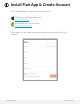
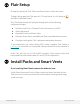
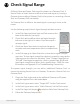
1. In the Flair App view Smart Vent and Puck status at the
base of the room tile (see right)
2. Check Puck online/offline status and signal strength
indicator to the right of its status. More bars equal a
stronger signal.
3. Check the Smart Vent status to see how changes to
set point and room temperature affect vent open/close
state.
4. In the Flair app, go to Home Statistics to view device signal strength
over time. To view signal strength for devices in a specific room, tap the
3-dot menu on the room tile and select “Stats”. Change Graph Data to
“RSSI dB”. Good signal strength for a Puck is greater than -85dB, and
good signal strength for a Smart Vent is greater than -75dB. For more
information, see Appendix C for Troubleshooting Connectivity.
To improve signal strength, you can add an additional Gateway Puck, or
convert an existing Sensor Puck to a Gateway. To convert a Sensor Puck to a
Gateway Puck:
1. Plug in the Puck to be used as the additional Gateway to AC power
using the supplied Flair cable and adapter
2. In the Puck’s gear menu, select “Forget WiFi”. Let the Puck restart
3. In the Puck’s gear menu, select “Make Gateway”. Let the Puck restart
4. In the Flair App click the plus and select Add a New Gateway Puck
5. Follow the Gateway Setup wizard
support@flair.co flair.co/contact