
User's Manual

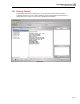
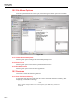

Upload/Download Screen
18.7 Downloading Calibration Items as Tasks18
18-7
18.6.1.5.3 Preserve <x% > Memory for Results:
Every calibrator has a certain amount of memory, which is broken up into tasks and
results, somehow. By downloading, we erase the results memory and replace the tasks
memory with our newly created procedures. This option allows the tester to save a
defined percentage of the memory for calibration results
.
18.6.2 Upload Options
Options for copying of the calibration results from the Calibrator to DPCTrack2 as
calibration records.
18.6.2.1 Update Item’s Status on Failure or Success
If you upload a calibration, you can automatically update the instrument or loop's status
from Out of Service to In Service, or vice versa, according to the results of the calibration
record. Check this box to perform this action automatically. You can still go into your
master records and change this afterwards.
18.6.2.2 Add Note to All Calibrations Indicating Make, Model, and Serial # of Device (if
Available)
This option will add a brief message to a new Note on every new Calibration record
added. This note will show the user the manufacturer, model number, and serial number
of the device used for upload.
18.7 Downloading Calibration Items as Tasks
This function is used to create a calibration task on a calibrator. Every calibrator has a
certain amount of memory, which is broken up into tasks and results. By downloading,
we erase the results memory and replace the tasks memory with our newly created
procedures.
Important
All task downloads will completely erase ALL procedures and
results from the current calibrator's memory.
ALWAYS double check to make sure that you are not erasing
any data that you have not recorded elsewhere.
1. Select 'Download to Calibrator' from the Action checkbox.
2. Make sure your calibrator is set up for communication.
3. Be sure that you have properly set up the signal types used in the instruments you
plan to download. See Signal Type Setup.
18.7.1 Download By
There are three methods to choose from for generating a list of Tags to download.
18.7.1.1 By Cals Due
This option gives you a list of Instruments or Loops which are due before or on the
specified Due Date. Leave the date field blank for all available items. To add an item to
the list of Tags to be downloaded, simply check the checkbox next to it. Clicking on any
item displays information in a memo box to the right of the checklist area. When a
particular item cannot be added to the tag list, it is unavailable for checking and the
reason it cannot be downloaded is displayed with the item information in the memo box.