
User's Manual




DPCTrack Explorer
22.1 DPCTrack Explorer
22
22-5
screen is already open, it will attempt to navigate to the selected record.
Note
You can also open the selected item if it has no sub-items by double-
clicking the item.
• “Enter Calibration Record” - This option opens the Calibration Record screen and
automatically chooses the current item as the basis for a new calibration history
record.
22.1.3 Status Indicator Icons
All items are indicated by an icon that is the same as their Records Toolbar button icon.
During some situations, an additional icon may appear to the left of these icons to
indicate a particular situation:
This icon indicates an overdue item.
22.1.4 Resetting the Tree
You may reset the tree of items shown on the Explorer by right-clicking the DPCTrack
Explorer button and clicking “Refresh Tree”. If DPCTrack Explorer is already open, it
will refresh and reopen. If DPCTrack Explorer is not open, “Refresh Tree” will also open
the Explorer.
22.1.5 Displaying Additional Information
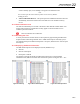
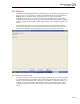
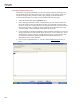
The DPCTrack Explorer can be displayed 3 (three) different ways:
• Item ID
• Item ID : Description
• Description : Item ID
The settings to change the display for DPCTrack Explorer are on the SYSTEM
OPTIONS screen, Below are screen shots of the three options. See Figures 22.3 – 22.5
Figure 22.3 ID Only Figure 22.4 ID & Description Figure 22.5 Description & ID