
Computer Products of America Image Scanner Operator's Guide fi-4990C
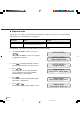
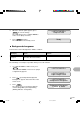
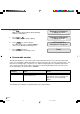
Table Of Contents
- Cover
- Inner Cover
- Revision Record
- Addresses
- IMPORTANT NOTE TO USERS
- Preface
- Conventions
- CONTENTS
- Chapter Index
- CHAPTER 1 COMPONENTS
- CHAPTER 2 INSTALLATION AND CONNECTIONS
- CHAPTER 3 OPERATING INSTRUCTION
- CHAPTER 4 DOCUMENT SPECIFICATION
- CHAPTER 5 SPECIFICATIONS
- CHAPTER 6 SETUP, BROWSE, AND TEST MODES
- Setup, Browse, and Test Modes
- Activating the Setup or Browse Mode
- Contents of the Setup or Browse Mode
- Transition of screens in setup mode
- Paper length check
- Doublefeed check
- Paper thickness setup
- Skew check
- IPC-3 mode
- Hopper height
- Paper separation level
- Drop-out color
- Background changeover
- Consumable counter
- Consumable counter reset
- Consumable alarm mode
- Buzzer
- Buzzer volume
- LCD contrast
- Picking speed
- TP_IF baud rate
- SCSI ID
- Product ID
- Pre-pick
- Pick start time
- Manual feed timeout
- Paper pick retry
- Paper feed retry
- Function key
- Setup mode lock
- Language
- White follower mode
- Interface board slot
- SCSI bus width setting
- Activating the Test Mode
- Contents of the Test Mode
- GLOSSARY OF TERMS
- INDEX
- Declaration of Conformity
- Back Cover
6-21
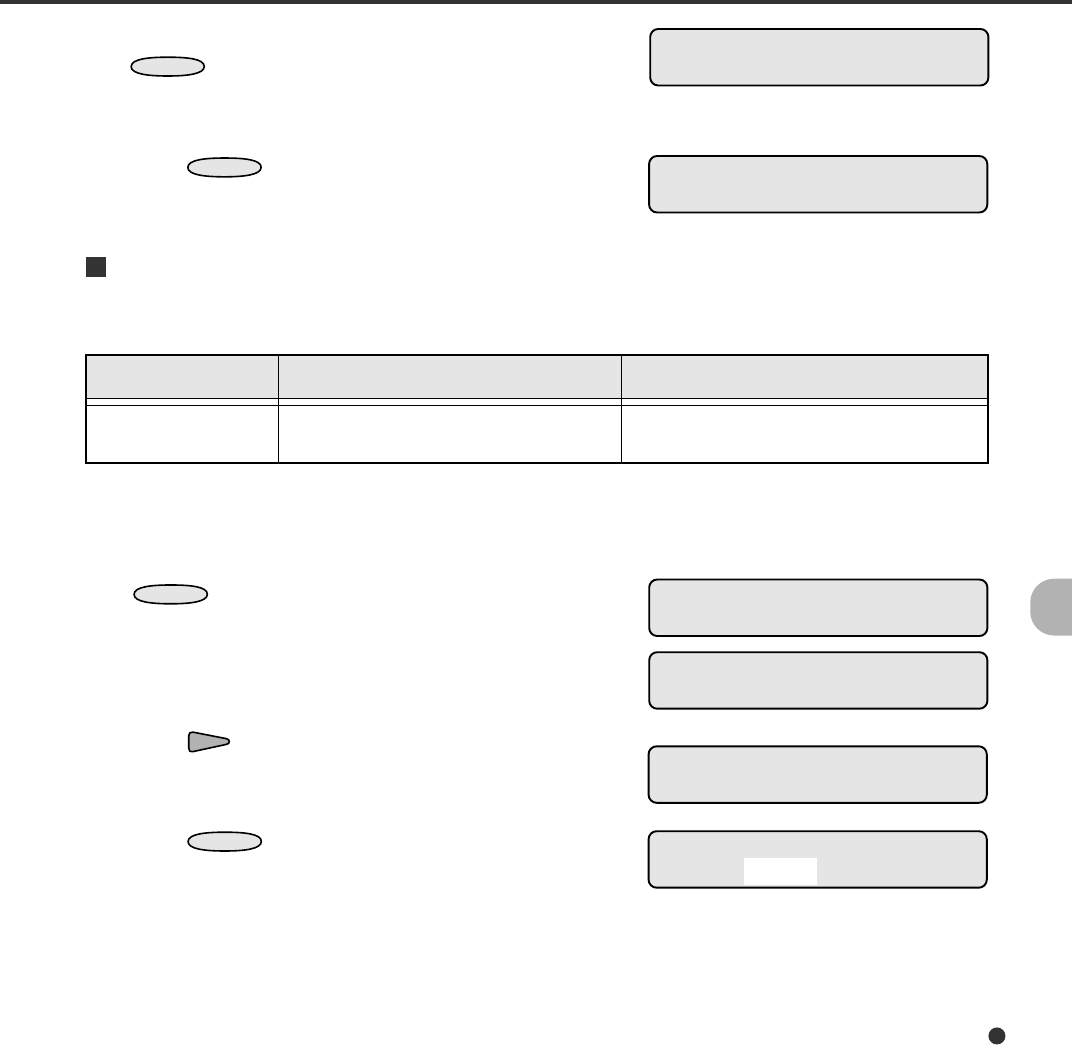
6. When the desired option appears, press
ENTER
to save the change.
The LCD returns to the <<SETUP MODE>>
menu screen (Drop-out Color).
7. Press
CANCEL
two times.
The LCD returns to the Ready screen.
<<SETUP MODE>>
Drop-out Color
Ready
Background changeover
This function sets the Background to “White” or “Black”.
RemarksLCD display
Background
changeover
Options
Front: White, Black (Default: White)
Back: White, Black (Default: White)
The following is an example of operation when you use this function.
<<SETUP MODE>>
<<SETUP MODE>>
Paper Length Check
<<SETUP MODE>>
Background Changeover
Background Changeover
F: White B: White
1. In <<SETUP MODE>> initial screen, press
ENTER
.
The <<SETUP MODE>> menu screen (Paper
Length Check) appears.
2. Press repeatedly until “Background
Changeover” appears in the lower line of the
menu screen.
3. Press
ENTER
.
The option select screen appears with the
current setting White (for Front) blinking
(blinking indicates “changeable”).
14C6.P65 01.2.17, 5:46 PM21