
Quick Reference Guide




CHAPTER5: Managing Power
72
Three power plans are pre-defined for you:
• Balanced - This is the default power plan which balances
performance and battery life.
• Power saver - This power plan sacrifices performance in
order to extend battery life. Use this plan if you will be
away from AC power outlets for an extended period of
time. Your programs may run slower than you are
accustomed to under the other two power plans.
• High performance - This power plan sacrifices battery life
in order to gain performance. Use this plan if you need
additional computing power for your program. Your
batteries may not last as long as you are accustomed to
under the other two power plans.
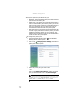
To change the power plan:
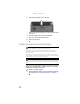
1 Press the Mobility Center button . The Windows
Mobility Center window opens.
2 Click or tap (Change power settings). The Select a
power plan window opens.
3 Select the power plan you want to use.
- OR -
Click or tap Change plan settings, modify the power
plan you selected, then click or tap Save changes.
Help
For more information about changing the power plan, click or
tap Start, then click or tap Help and Support. Type the keyword
power plan in the Search Help box, then press E
NTER.