
Computer Monitor User Manual



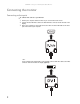
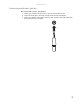
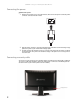
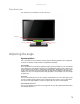
Table Of Contents
- HD2202 22-inch Widescreen LCD Monitor
- USERGUIDE
- Contents
- Using Your Gateway Flat-Panel Monitor
- Connecting the monitor
- Adjusting the angle
- Starting the monitor
- Adjusting monitor settings
- Changing Windows screen settings
- Power management
- Maintenace
- Troubleshooting
- FAQs
- General
- How To
- Technical
- Why do I see “noise” or “trash” on the screen?
- What is HDCP and how do I troubleshoot it?
- How does HDCP work?
- What happens if I lose signal to the display while watching a movie on a HDCP-equipped component?
- What is the cause if a movie starts and then slowly fades to static?
- How do I know if a component is HDCP compliant?
- Specifications
- Safety, Regulatory, and Legal Information

CHAPTER 1: Using Your Gateway Flat-Panel Monitor
2
Connecting the monitor
Connecting video inputs
To connect video sources to your monitor:
1 Position your computer and the monitor so you can reach the back of each.
2 Connect the blue VGA video cable to the blue VGA video connector under the back of the
display.
3 Ensure your computer is turned off. Connect the other end of the VGA cable to the video
port on the back of your computer.
- OR -
If your computer has a digital video connector (DVI), connect a DVI video cable to the white
connector under the back of the display.
(option)