
Computer Monitor User Manual



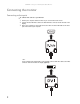
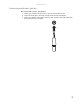
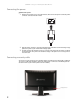
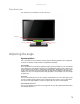
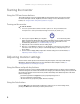
Table Of Contents
- HD2202 22-inch Widescreen LCD Monitor
- USERGUIDE
- Contents
- Using Your Gateway Flat-Panel Monitor
- Connecting the monitor
- Adjusting the angle
- Starting the monitor
- Adjusting monitor settings
- Changing Windows screen settings
- Power management
- Maintenace
- Troubleshooting
- FAQs
- General
- How To
- Technical
- Why do I see “noise” or “trash” on the screen?
- What is HDCP and how do I troubleshoot it?
- How does HDCP work?
- What happens if I lose signal to the display while watching a movie on a HDCP-equipped component?
- What is the cause if a movie starts and then slowly fades to static?
- How do I know if a component is HDCP compliant?
- Specifications
- Safety, Regulatory, and Legal Information

CHAPTER 1: Using Your Gateway Flat-Panel Monitor
4
Connecting the power
Connect the power:
1 Position your monitor so you can reach the back, then connect the power cord to the power
connector at the back of the monitor.
2 Plug the power cord into a correctly grounded power outlet. We recommend using a surge
protector to protect your monitor from voltage spikes.
3 To make sure that the monitor’s power is correctly connected, check the power icon above
the power button. The power icon should be orange. If the power icon is not lit, power is
not connected.
Connecting a security cable
You can secure your monitor to your computer desk (or to another heavy object) with a cable lock.
To connect a cable lock, follow the cable lock’s instructions to connect it to the Kensington lock
slot at the back of your monitor (cable lock not included).
Kensington lock slot