Excel Add-In GDM-834X Series GDM-834X Series Excel Add-In Manual GW INSTEK PART NO.
This manual contains proprietary information, which is protected by copyrights. All rights are reserved. No part of this manual may be photocopied, reproduced or translated to another language without prior written consent of Good Will company. The information in this manual was correct at the time of printing. However, Good Will continues to improve products and reserves the right to change specifications, equipment, and maintenance procedures at any time without notice. Good Will Instrument Co., Ltd. No.
Table of Contents TABLE OF CONTENTS INTRODUCTION ........................................................................................................... 4 Overview...................................................................................................................................... 4 SETUP ............................................................................................................................. 5 Connection .............................................................
GDM-834X Series Excel Add-In Manual INTRODUCTION This manual is suitable for both the GDM-8341 and GDM-8342. This manual is to be used with all versions of Excel from 2003 and onwards with Windows PCs (Windows XP, Vista and 7: 32 or 64 bit). Please note that Macros must be enabled for the Add-In to function. The GDM-834X Excel AddIns software is an Add-In for Microsoft Excel.
SETUP SETUP Connection Before using the Excel Add-In you must set the baud rate for the DMM in the USB menu. This configuration will be used when using the software to connect to the DMM remotely. Note: This Add-In cannot be used with the GPIB option. 1. Connection 1. Connect the rear panel USB B port on the DMM to a USB port on the PC using a Type A to Type B USB cable. CA L U SI B R E AT O N IO LYN 2. Configure the DMM 2. Press MENU. 3. Go to I/O on level 1. 4. Go to USB on level 2. 5.
GDM-834X Series Excel Add-In Manual Installation Two items, the USB driver and the GDM-834X Excel Addins Software need to be installed onto the PC. 2. Installing the USB driver 1. Connect the DMM to the PC using the supplied USB TypeA to TypeB cable (GTL-246). 2. The Windows Found New Hardware Wizard will detect the DMM as a new device and ask for the device driver. Choose to locate the driver manually.
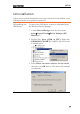
SETUP Uninstallation Follow the procedures described in this section when the Excel Add-In or the USB driver needs to be updated or removed. Uninstalling the USB driver To remove the USB driver, it must be uninstalled from the Windows Device Manager. 1. Launch Device Manager from the Start menu. StartControl PanelDevice Manager (XP, Windows 7) 2. Double-click Ports (COM & LPT). Right-click GDM834X VCP PORT (COMXX) and choose the Uninstall option. 3.
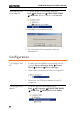
GDM-834X Series Excel Add-In Manual Uninstalling the Excel Add-In 1. From the Windows Start menu select the Start All Programs GWINSTEK DMM GDM-834x directory and choose Uninstall. 2. Select Yes to uninstall the product. 3. The Uninstaller will automatically finish the uninstallation. Configuration 1. Configure the PC 1. To make sure the DMM is recognized by the PC, open the Device Manager (Start Control Panel (System) Device Manager. 2. Check which COM port the device is assigned to. 3.
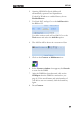
SETUP 2. Opening GDM-834x Excel Addins will automatically open an Excel Spreadsheet. If asked by Windows to enable Macros, choose Enable Macros. 3. For Excel 2007 and up: Go to the Add-Ins tab in the Ribbon UI. For older versions such as Excel 2003: Go to the Tools menu and select the Add-Ins option. 4. The Add-In will be shown in a custom tool bar. 5. Click on the Connect to Multimeter icon. 6. In the Connect window that appears, click Search to scan for the DMM. 7.
GDM-834X Series Excel Add-In Manual 9. The Splash screen will close automatically after the connection is successful. 10. Move on to Measurement. Disconnect Press Disconnect to end the remote control session. Cancel and Exit Press Close to exit from the Connection window without connecting or disconnecting.
DATA LOGGING REMOTE CONTROL DATA LOGGING REMOTE CONTROL 1. Establish remote connection Follow the procedures for connection and configuration on page 5 and page 8. 2. Setup 1. Press the Setup Multimeter icon. 2. The Set Up Multimeter window appears. 3. Choose a measurement item. 4. Choose the measurement range. 5. Choose the measurement rate. 6. Press OK to confirm the settings and exit automatically. 7. Press Exit to cancel and exit with making a setting.
GDM-834X Series Excel Add-In Manual 3. Save/Recall Load Settings 1. Press the Save/Load Multimeter Settings icon. 2. The Save/Load Multimeter Settings panel appears. 3. Choose to Load Multimeter Settings from File or Save Multimeter Settings to File. If saving a file, choose a directory and filename. Click Save to save the file. The file will be saved as XXXXX.DMM. After a few moments, if the save was successful a message “Saved OK!” will appear. Click OK.
DATA LOGGING REMOTE CONTROL 4. Setup Data Logging 1. Press the Record SetupStart icon. This icon will only be available after a measurement has been selected with the Setup Multimeter icon (page 11). 2. Choose the Logging tab. 3. Set the logging start time in Begin Logging Data panel. Immediately: Choose this option to begin logging measurements as soon as the “Play” icon is pressed. (see page 17 for details) At Time: This option allows you to choose the exact time that the logging will start.
GDM-834X Series Excel Add-In Manual 4. To select the logging interval, configure the With Interval option. This option can set how often the DMM will trigger, down to the number hours, minutes and seconds between each measurement. 5. Use the Terminating Upon panel to set when to stop the data logging. Number of Readings: Configures the logger to stop after a set amount of measurements. Duration: Sets the logger to stop logging measurements after a set amount of time or number of readings.
DATA LOGGING REMOTE CONTROL 6. By default the measurements are plotted as a graph as soon as the data logging starts. Press the Chart tab to edit the chart behavior. The Chart Type panel selects which type of graph, if any, to plot. No Chart: This option will disable plotting a graph. Graph: This is the default option. This will plot each point in a graph as soon as it is logged.
GDM-834X Series Excel Add-In Manual 7. Use the Place Charts In… panel to draw the chart in the same Excel sheet or to plot the graph in a new Excel sheet. Separate: Places charts in a new sheet each time logging is started. Same Sheet: Places charts in the same sheet as the logging data. 8. The Histogram option will open a new sheet and perform statistical analysis on the logged data in real-time so that a histogram can be created.
DATA LOGGING REMOTE CONTROL 5. Starting Data Logging 1. After the data logging setup has been completed, the Play, Pause and Stop icons will become available. The icons are colored orange when they are available. To start measurement, press the Play icon. Measurements will automatically start to be logged. If the Chart or Histogram options were selected, then they will also be plotted as the data is logged. Press the Pause icon to pause logging. Press the Play icon again to resume.
GDM-834X Series Excel Add-In Manual Chart Example Excel Add-In icons Data statistics Logged data Chart Histogram Example Excel Add-In icons Data statistics Logged data Histogram 18
DATA LOGGING REMOTE CONTROL View Add-In Software Version 1. View software version 1. Click on the About Icon to view the software version number. About Icon 2. The About Multimeter splash screen will appear displaying software version number.