
HP Color LaserJet Enterprise Flow MFP M880 - User Guide

●
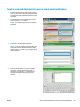
If you selected E-mail, the following dialogs appear: Address and Message Field Control, Signing
and Encryption
●
If you selected Fax, the following dialog appears: Select Fax Recipients
●
If you selected Save to Network Folder, the following dialog appears: Folder Settings
●
If you selected Save to USB the following dialog appears: Set where les are saved on the USB
storage device
●
If you selected Save to SharePoint® the following dialogs appear: SharePoint® Destination
Settings
, Add SharePoint® Path, SharePoint® Destination Settings
NOTE: The Save to SharePoint® feature is available for all HP LaserJet ow MFPs and the Scanjet
8500 fn1, and the Scanjet 7000nx with rmware datecode 20120119 or newer.
Proceed through the destination-specic dialogs. Click Next to advance to the next dialog.
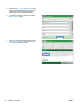
8. On the Notication Settings dialog, select your scan status notication preference, and then click Next.
9. On the Scan Settings dialog, select the scan settings to use. Click Next.
10. On the File Settings dialog, select the le settings to use. Click Next.
11. Review the Summary dialog, and then click Finish.
12. On the Quick Set-specic dialog, click Apply at the bottom of the window to save the Quick Set.
ENWW Create a Quick Set 75