
Getting Started HP Notebook - Windows Vista and Windows 7
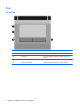
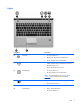
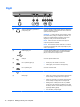

Right
Component Description
(1)
Audio-out (headphone) jack/Audio-in
(microphone) jack
Connects optional powered stereo speakers, headphones,
earbuds, a headset, or television audio. Also connects an
optional headset microphone.
WARNING! To reduce the risk of personal injury, adjust
the volume before putting on headphones, earbuds, or a
headset. For additional safety information, refer to the
Regulatory, Safety, and Environmental Notices.
NOTE: When a device is connected to the jack, the
computer speakers are disabled.
NOTE: Be sure that the device cable has a 4-conductor
connector that supports both audio-out (headphone) and
audio-in (microphone).
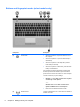
(2)
USB charging port Connects optional USB devices. The USB charging port
can also charge select models of cell phones and MP3
players, even when the computer is off.
(3)
USB port Connects optional USB devices.
(4)
RJ-45 (network) lights (2)
●
Green (left): The network is connected.
● Amber (right): The network is showing activity.
(5)
RJ-45 (network) jack Connects a network cable.
(6)
Power connector Connects an AC adapter.
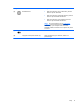
(7) Battery light
●
Amber: The computer is connected to external power
and the battery is charged from 0 to 90 percent.
●
White: The computer is connected to external power
and the battery is charged from 90 to 99 percent.
● Blinking amber: A battery that is the only available
power source has reached a low battery level. When
the battery reaches a critical battery level, the battery
light begins blinking rapidly.
●
Off: The battery is fully charged.
12 Chapter 2 Getting to know your computer