
HP Color LaserJet CP3505 Printer - Software Technical Reference
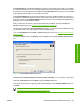
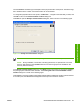

Click IP Hostname to make the field available for typing the IP hostname for the printer. Any characters
are allowed in this field, but an error message appears if spaces are included in the field. If this option
is selected, you must type at least one character in the IP Hostname field to prevent an error message
from appearing and prompting you for a valid IP hostname.
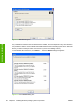
Click Hardware Address to make the field available for typing the hardware address of the printer. It
accepts any characters but limits the entry to 12 characters. If this option is selected, you must type at
least one character in the Hardware Address: field to prevent an error message from appearing and
prompting you for a valid hardware address.
After you select any the options, type the appropriate name or address, and then click Next, the
Drivers dialog box opens (see
Figure 3-8 Drivers dialog box on page 84).
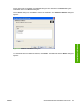
For each of the options in the Specify TCP/IP Port dialog box, you can either use the default port name
(as specified in each of the three options) or specify a different name.
If you click Use Default and click Next, the Drivers dialog box opens. See
Figure 3-8 Drivers dialog
box on page 84.
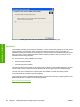
To specify a different name, click Specify: and click Next to open the Port Creation Options dialog
box.
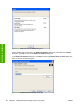
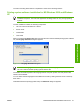
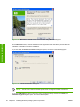
Figure 3-7 Port Creation Options dialog box
Click No, do no create the port (the printer will not be installed) if you do not want to create a port.
Click Yes, create the port and click Next to open the Drivers dialog box.
If the printer cannot be found, type the printer hardware address in the Hardware Address field and
click Next.
NOTE: To print a configuration page where the printer hardware address is listed, see
Determining the current level of firmware on page 218.
ENWW General MS Windows installation instructions 83
Installation in Windows