
HP Color LaserJet CP3505 Printer - Software Technical Reference
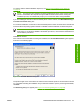




If you click Search again for all available printers and then click Next, the Searching dialog box opens
(see
Figure 3-21 Searching dialog box on page 94).
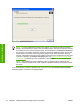
If you click Specify Printer by address and then click Next, the Specify Printer dialog box opens.
If you click Enter settings for a printer not on the network and then click Next, the Printer
Settings dialog box opens.
You can specify a printer by clicking one of the following options and typing in the required information:
●
Hardware Address (MAC)
●
IP Address
●
IP Hostname
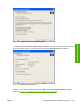
When you click Next, the Searching dialog box opens. When the search is finished, the Printer
Found dialog box opens (see
Figure 3-23 Printer Found dialog box on page 95).
If you clicked Enter settings for a printer not on the network in the Check Printer Connection dialog
box and then clicked Next, the Installation Types dialog box opens (see ).
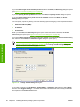
NOTE: If you selected Yes in the Confirm Changing Setting dialog box (see Figure 3-25
Confirm Changing Setting dialog box on page 97), the Change TCP/IP Settings dialog box
opens, as shown in the following figure.
Figure 3-27 Change TCP/IP Settings dialog box
If you make a change in the IP Address:, Subnet Mask:, or Gateway: fields (without clicking Next)
and then click Suggest Settings…, the fields refresh with information that was found by the installer
and reported in the Printer Found screen.
98 Chapter 3 Installing Windows printing-system components ENWW
Installation in Windows