
HP Color LaserJet CP3505 Printer - Software Technical Reference






The drop-down menu shows alphabetically sorted watermarks that are currently available on the system,
plus the string "(none)", which indicates that no watermark is selected. This is the default setting. Any
watermark that is selected from this list appears in the preview image.
When the First Page Only check box is selected, the watermark is printed only on the first page of the
document. The First Page Only check box is disabled when the current watermark selection is "(none)".
Watermarks are applied to logical pages. For example, when Pages per Sheet is set to "4" and First
Page Only is turned off, four watermarks appear on the physical page (one on each logical page).
Click Edit, and the Watermark Details dialog box appears.
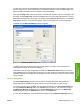
Figure 4-12 Watermark Details dialog box
The dialog box shows a preview image and provides options for creating a new watermark and
controlling the message angle and font attributes.
Click OK to accept all of the changes that are made in the Watermark Details dialog box. However,
clicking Cancel does not cancel all of the changes. If you make changes to a watermark and then select
a different watermark or click New, all of the changes are saved, and only the current, unsaved changes
can be canceled.
Current watermarks
The Current Watermarks group box contains a list of available watermarks, both predefined
watermarks that are available in the driver and any new watermarks that you have created.
To create a new watermark, click New. The new watermark appears in the Current Watermarks list
and in the Watermark Message edit box as "Untitled" until you name it. The name that you type in
the Watermark Message field appears in the Current Watermarks group box in the Watermark
Details dialog box and in the Watermarks group box on the Effects tab.
To name the new watermark, type the selected watermark text in the Watermark Message edit box.
ENWW Effects tab features 137
HP print drivers for
Windows