
HP Color LaserJet CP3505 Printer - Software Technical Reference




NOTE: To make the Print on Both Sides (Manually) check box available in the document
options, select the Allow Manual Duplexing option on the Device Settings tab in the Properties
print-driver tabs. See
Installable Options on page 169 in the Device Settings tab features
on page 164 section of this chapter.
If you want to print on both sides manually while using media that is supported for automatic
duplexing, you must select and apply the Not Installed setting on the Duplex Unit (for 2-Sided
Printing) option on the Device Settings tab.
Cardstock media can be manually printed on the second side, but no change occurs to the print mode.
Transparencies and labels should not be manually printed on the second side.
To print a multiple-page document, follow these steps:
1. Select the Print on Both Sides (Manually) check box.
2. Click OK. The even-number pages of the document print.
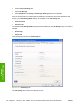
3. When the control panel shows the MANUALLY FEED message, insert the stack of media (on which
the even-number pages have been printed) as indicated in the following figure.
Figure 4-14 Print on Both Sides Instructions dialog box
When you have completed the steps that appear in the dialog box, the second half of the print job prints
on the back side of the stack of media. The driver does not require the program to specifically support
odd- and even-page printing, because the driver coordinates this function.
Flip Pages Up
Use the Flip Pages Up check box is used to specify the duplex-binding option. By default, the Flip
Pages Up check box is not available. It is available only when Print on Both Sides is selected, The
following table demonstrates the results of selecting this check box, depending on the media orientation
selected on the Finishing tab.
144 Chapter 4 HP PCL 6, PCL 6 Black, PCL 5, and PS emulation print drivers for Windows ENWW
HP print drivers for
Windows