
HP Color LaserJet CP3505 Printer - Software Technical Reference






Setting up a printer with Mac OS X V10.3
1. In the Applications folder, open the Utilities folder, and then run the Printer Setup Utility.
2. Click Printers and then click Add Printer .
3. When the New Printer drivers detected pop-up box appears, click OK.
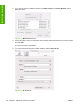
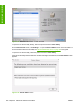
4. From the top pop-up menu, select the appropriate connection type for the product.
5. Select or type in any other information as indicated for the type of connection for the product. For
example, if you are using an AppleTalk connection, select the product zone; or if you are using IP
Printing, type a TCP/IP address in the Printer Address field. In the Printer Model drop-down
menu, select HP. In the Model Name drop-down menu, select HP Color LaserJet CP3505.
NOTE: If the automatic selection fails, or if you want to manually select a .PPD file, click
the Printer Model pop-up menu, select HP, and then select the .PPD file that you want to
add.
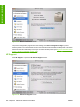
6. Click Add. The HP Color LaserJet CP3505 printer appears in the Printer List.
7. To configure installable options in Mac OS X V10.2 and later, such as a duplexing unit or optional
paper trays, click Show Info? and select Installable Options in the drop-down menu.
NOTE: This step is necessary only for network connections and USB connections that use
Rendezvous/Bonjour. AppleTalk automatically configures the installable options.
8. Configure the options, click Apply Changes, and then close the Printer List dialog box.
Uninstalling the Macintosh printing system
To uninstall the Macintosh Printing System, drag the PPDs and the unwanted component(s) to Trash.
196 Chapter 6 Macintosh software and utilities ENWW
Installation in Macintosh