
HP LaserJet P2010 Series - Software Technical Reference
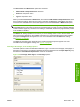



When the size for which the document is formatted (that is, the logical size) differs from the target size,
the preview image uses a dashed gray line to show the boundaries of the logical page in relation to the
target page size.
% of Normal Size
The % of Normal Size option provides a slider bar to use for scaling the percentage setting. The default
setting in the entry box is 100% of normal size. Normal size is defined as the paper size that is selected
within the driver or what the driver receives from the software program (if the software program does
not negotiate the paper size with the driver). The driver scales the page by the appropriate factor and
sends it to the device.
The limits of the range are from 25% to 400%, and any values outside the range are adjusted to those
limits as soon as the focus is removed from the control (that is, when the Tab key is pressed or another
control is selected).
Any change to the scale also changes the page preview, which increases or decreases from the upper-
left corner of the preview.
The slider bar controls the scale directly. The value in the edit box changes as the scroll bar indicator
is dragged, and the preview image is updated to the new image scale. Each click on the scroll bar arrows
increases or decreases the scale by 1%. Each click on the slider bar affects the scale by 10%.
You cannot achieve an exact value by dragging the scroll bar indicator at the default Microsoft Windows
resolution; use the scroll bar indicator to approximate the value, and then use the scroll bar arrows to
refine the value.
The following settings disable % of Normal Size:
●
Print Document On (on the Effects tab) is selected .
●
Pages per Sheet (on the Finishing tab) is not 1.
Document preview image
The document preview image is a line-drawn image of a page that represents graphics and text. The
document preview image is always oriented so that the contents of the page are right-side up. The
document preview image appears in the upper-right corner of most Printing Preferences driver tabs
(the Paper/Quality, Effects, and Finishing tabs).
Switching between tabs does not change the location or appearance of the document preview image.
Move the mouse over the document preview image, and the mouse cursor changes from an arrow to a
gloved hand. Toggle between portrait and landscape page orientation by clicking on the image.
Watermarks
Use the Watermarks feature to select a watermark, create a custom watermark (text only), or edit an
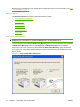
existing watermark. The following watermarks are preset in the driver.
●
Current Watermarks
●
Watermark Message
●
Message Angle
●
Font Attributes
ENWW Driver tabs 89
Host-based driver for
Windows