
HP LaserJet P2010 Series - Software Technical Reference
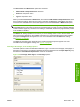



To create a new watermark, click New. The new watermark appears in the Current Watermarks list
and in the Watermark Message edit box as "Untitled" until you name it. The name typed in the
Watermark Message field appears in the Current Watermarks group box in the Watermark Details
dialog box and in the Watermarks group box on the Effects tab.
To name the new watermark, type the selected watermark text in the Watermark Message edit box.
To delete a watermark, select the watermark in the Current Watermarks list and click Delete. A warning
appears asking whether you are sure you want to delete the selected item. Click Cancel if you want to
keep the watermark. Click OK to delete the selected watermark.
NOTE: No more that 30 watermarks can be saved in the Current Watermarks list at one time. When
the limit of 30 watermarks is reached, the New button is disabled.
To edit an existing watermark, select the watermark in the Current Watermarks list. If you change
the Watermark Message for that watermark, you are, in effect, creating a new watermark.
Watermark Message
The Watermark Message is also the name that identifies the watermark in the Current Watermarks
list, except when more than one watermark has the same message. For example, several different
watermarks can contain the message DRAFT, each with a different typeface or font size. When this
occurs, the string is appended with a space, a pound sign, and a number (for example, Draft #2). When
a number is added, the number two is used first, but if the resulting name is also in the list, then the
number increases until the name is unique (Draft #3, Draft #4, and so on).
Message Angle
Use the controls in the Message Angle group box to print the watermark in different orientations in
relation to the text on the page. The settings are Diagonal, Horizontal, or Angle (custom). The default
is Diagonal. All three settings automatically center the watermark string within the page; the selection
of a particular setting affects only the angle of the string placement. Diagonal places the text along a
line that spans the lower-left to upper-right corners of the page. Horizontal places the text along a line
that spans the mid-left and mid-right edges of the page. Angle places the text at the specified angle
across the page.
Font Attributes
Use the controls in the Font Attributes group box to change the font and the shading, size, and style
of the font.
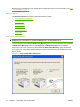
The Font Attributes group box contains the following controls:
●
Name drop-down menu
●
Color drop-down menu
●
Shading drop-down menu
●
Size spin box
●
Style drop-down menu
Name
The Name drop-down menu lists fonts that are currently installed on the system. The default is language-
dependent.
ENWW Driver tabs 91
Host-based driver for
Windows