
HP LaserJet P4010 and P4510 Series Printers UPD PCL 5 - Printing

HP LaserJet P4010 and P4510 Series Printers UPD PCL 5 – Printing
©2008 Copyright Hewlett-Packard
Development Company, L.P.
2
www.hp.com
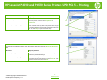
To perform the following tasks, open the printer driver and click the Paper/Quality tab.
How do I Steps to perform
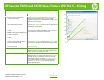
5 Select a page size
Select a size from the Paper size drop-down list.
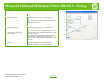
6 Select a custom page size
a) Click Custom. The Custom Paper Size dialog box
opens. b) Type a name for the custom size, specify the
dimensions, and click OK.
7 Select a paper source
Select a tray from the Paper source drop-down list.
8 Select a paper type
Select a type from the Paper type drop-down list.
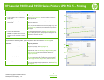
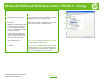
9 Print covers on different paper
Print the first or last page on
different paper
a) In the Special pages area, click Covers or Print
pages on different paper, and then click Settings. b)
Select an option to print a blank or preprinted front cover,
back cover, or both.
Or, select an option to print the first or last page on
different paper. c) Select options from the Paper source
and Paper type drop-down lists, and then click Add. d)
Click OK.
10 Adjust the resolution of printed
images
In the Print Quality area, select an option from the drop-
down list. See the printer-driver online Help for
information about each of the available options.
5
6
7
8
9
10