
HP LaserJet P4010 and P4510 Series Printers UPD PCL 5 - Printing

HP LaserJet P4010 and P4510 Series Printers UPD PCL 5 – Printing
©2008 Copyright Hewlett-Packard
Development Company, L.P.
7
www.hp.com
To perform the following tasks, open the printer driver and click the Advanced tab.
How do I Steps to perform
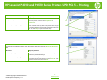
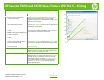
29 Select advanced printing options In any of the sections, click a current setting to activate a
dropdown list so you can change the setting.
30 Change the number of copies that
are printed
NOTE: If the software program that
you are using does not provide a
way to print a particular number of
copies, you can change the number
of copies in the driver.
Changing this setting affects the
number of copies for all print jobs.
After your job has printed, restore
this setting to the original value.
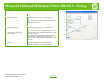
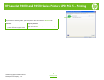
Open the Paper/Output section, and then enter the
number of copies to print. If you select 2 or more copies,
you can select the option to collate the pages.
31 Print colored text as black, rather
than as shades of gray.
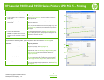
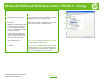
a) Open the Document Options section, and then open
the Printer Features section. b) In the Print All Text as
Black drop-down list, select Enabled.
32 Change the order in which pages
are printed
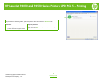
a) Open the Document Options section, and then open
the Layout Options section. b) In the Page Order drop-
down list, select Front to Back to print the pages in the
same order as they are in the document, or select Back
to Front to print the pages in the reverse order.
29
30
31
32