
HP LaserJet P4010 and P4510 Series - Software Technical Reference



Detailed Microsoft Windows installation instructions
A series of dialog boxes appear during installation of the HP LaserJet P4010 and P4510 Series printing-
system software in MS Windows environments.
Topics:
●
Help, Back, Next, and Cancel buttons
●
Modify a pre-existing installation
●
Direct-connect installation through a USB or parallel port
●
Basic, Full, and Custom Installation dialog box sequence
Help, Back, Next, and Cancel buttons
Click the Help button on any screen where it appears to find suggestions for and explanations about
the installation process.
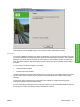
Click the Back button on any installation dialog box to return to the previous dialog box. The specific
dialog box depends on your previous selections.
Select any options on a given screen and click the Next button to proceed to the next step in the
installation sequence.
To exit the installation sequence without installing the device, follow these steps from any dialog box
where the Cancel button appears.
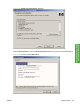
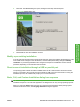
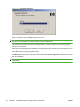
1. Click Cancel. A dialog box opens that prompts you with this question: “Are you sure you want to
cancel the installation?”
Figure 3-24 Are you sure you want to cancel the installation? dialog box
92 Chapter 3 Installing Windows printing-system components ENWW