
HP LaserJet P4010 and P4510 Series - Software Technical Reference
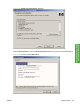

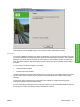
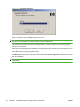
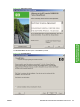

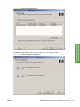
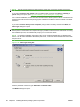

2. Click Yes. The Cancel dialog box opens, stating that the setup was interrupted.
Figure 3-25 Cancel dialog box
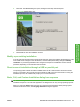
3. Click Finish to close the installation screens.
Modify a pre-existing installation
If an HP LaserJet P4010 and P4510 Series printer has been previously installed, the appearance of the
main install screen changes on the CD Browser, and the install-printer setting changes to Modify
installation. A pre-existing installation also changes the sequence of installation screens that are
presented, depending on the selections that are made.
Direct-connect installation through a USB or parallel port
The printing-system software should be installed before the HP LaserJet P4010 and P4510 Series
printer is connected to the computer through a parallel or USB connection and turned on. During the
installation process, the software will prompt you to connect the device.
Basic, Full, and Custom Installation dialog box sequence
NOTE: The dialog boxes shown in this STR appear in the Microsoft Windows XP Professional
installation sequence. The order and appearance of dialog boxes can vary among operating systems.
When you select the Install option from the HP LaserJet P4010 and P4510 Series printing-system
software CD browser screen, the Language Selection dialog box appears.
ENWW Detailed Microsoft Windows installation instructions 93
Install Windows printing-
system components