
HP LaserJet P4010 and P4510 Series - Software Technical Reference
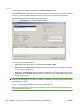
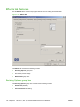
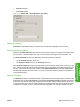
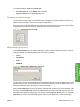
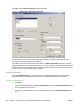

Click Edit, and the Watermark Details dialog box appears.
Figure 4-19 Effects tab – Watermark Details box
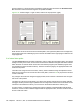
The dialog box shows a preview image and provides options for creating a new watermark and
controlling the message angle and font attributes.
Click OK to accept all of the changes that are made in the Watermark Details dialog box. However,
clicking Cancel does not cancel all of the changes. If you make changes to a watermark and then select
a different watermark or click New, all of the changes made to the previous watermark are saved, and
only the current, unsaved changes can be canceled.
Current watermarks
The Current Watermarks group box contains a list of available watermarks, both the predefined
watermarks that are available in the driver and any new watermarks that have been created.
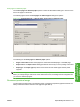
Creating a new watermark
1. Click New.
The new watermark appears in the Current Watermarks list and in the Watermark Message edit
box as "Untitled" until it is named.
2. To name the new watermark, type the selected watermark text in the Watermark Message edit
box.
148 Chapter 4 HP PCL 5, PCL 6, and PS emulation drivers for Windows ENWW