
HP LaserJet P4010 and P4510 Series - Software Technical Reference

Printing a booklet
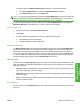
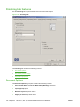
Complete the following steps to print a booklet.
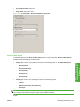
1. In the Finishing tab, select the Print on Both Sides Manually check box.
2. In the Booklet Layout drop-down menu, select the preferred type of booklet printing (for example,
Right Edge Binding).
3. Click OK in the print driver.
4. Click OK in the Print dialog box to print.
Printing a book
To print a book in which the front cover, first page, other pages, last page, and back cover are printed
on different media types, see the
Paper/Quality tab features on page 134 section of this chapter.
Pages per sheet drop-down menu
On the Finishing tab, use the Pages per sheet option to select the number of pages to print on a single
sheet of media. If more than one page per sheet is selected, the pages appear smaller and are arranged
on the sheet in the order that they would otherwise be printed. The Pages per sheet drop-down menu
provides six settings:
●
1 page per sheet (this is the default)
●
2 pages per sheet
●
4 pages per sheet
●
6 pages per sheet
●
9 pages per sheet
●
16 pages per sheet
NOTE: Selecting an option other than 2 pages per sheet makes booklet printing unavailable.
Print page borders check box
Related controls indented beneath the Pages per sheet edit box are Print page borders and Page
order, which become active when Pages per Sheet is greater than 1.
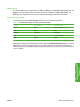
Print page borders sets a line around each page image on a printed sheet to help visually define the
borders of each logical page.
Page order drop-down menu
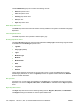
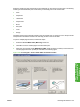
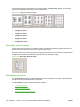
The Page order drop-down menu contains four selections:
●
Right, then Down
●
Down, then Right
●
Left, then Down
●
Down, then Left
ENWW Finishing tab features 157
HP PCL 5, PCL 6, and PS
emulation drivers for
Windows