
HP LaserJet P4010 and P4510 Series - Software Technical Reference


Removing external fonts
1. Click Start.
2. Select Settings.
3. Click Printers (Microsoft Windows 2000) or Printers and Faxes (Windows XP Professional and
Windows Server 2003) or Printers and Other Hardware Devices (Windows XP Home) or
Hardware and Sound (Windows Vista).
4. Right-click the name of the printer.
5. Click Properties.
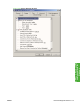
6. Click the Device Settings tab.
7. Click the External Fonts option. The Properties button appears.
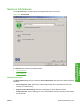
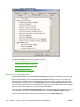
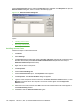
8. Click Properties. The HP Font Installer dialog box appears. The external fonts that are installed
appear in the Installed Fonts window.
9. Select the fonts to remove, and then click Remove. The fonts are removed.
10. Click OK to close the HP Font Installer dialog box.
Installable Options
Topics:
●
Automatic Configuration
●
Envelope Feeder
●
Tray 3, 4, 5, 6
●
Duplex Unit (for 2-sided Printing)
●
Allow Manual Duplexing
●
Accessory Output Bin
●
Printer Memory
●
Printer Hard Disk
●
Job Storage
●
Mopier Mode
Automatic Configuration
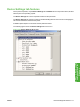
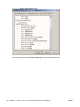
Use the Device Settings tab to tell the driver about the hardware configuration of the device. If
bidirectional communication is enabled in a supported environment, set up this tab by selecting the
Update Now setting in the Automatic Configuration setting. The default setting is Off. After an
automatic configuration, the setting returns to Off after the changes are made.
If your environment does not support bidirectional communication, the Update Now setting is
unavailable, so you must manually configure the options on this tab.
ENWW Device Settings tab features 177
HP PCL 5, PCL 6, and PS
emulation drivers for
Windows