
HP LaserJet P4010 and P4510 Series - Software Technical Reference
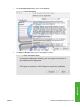
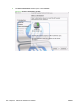
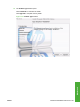
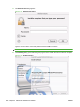
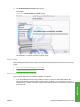
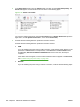

To print a configuration page, follow these instructions.
i. Press Menu,
ii. Press the down arrow to highlight INFORMATION, and then press OK.
iii. Press the down arrow to highlight PRINT CONFIGURATION, and then press OK to print
the configuration pages.
d. On the first configuration page, under IPv4, find the IP Address. Type this address into the
Address field on the add printer screen.
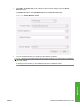
e. The Name, Location, and Print Using information will automatically be filled in. If the
HP LaserJet P4010 and P4510 Series PPD does not appear in the Print Using field, turn
the computer off and then on again and restart the setup process.
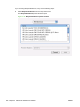
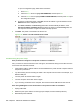
6. Click Add. The printer is now listed in the Printer List.
Figure 5-18 Printer List with Installed Printer Listed
Troubleshooting the printer setup
If the printer does not appear in the printer list after an installation:
Carry out each one of these solutions in the order given, and restart the setup process after each one
to see if the issue has been resolved.
●
Verify that the USB or network cable is connected between the printer and the computer and that
the printer is powered on.
●
Try disconnecting and reconnecting the cable. If the computer has more than one USB port, try a
different USB port.
●
Turn the printer off and then back on again.
●
Turn the computer off and then back on again.
●
If you are using a USB hub on the computer, disconnect the other USB devices from the hub.
If the wrong PPD appears in the Kind column in the printer list after an installation:
1. Unplug USB cable.
2. Delete the print queue with the incorrect type (for example, Generic PostScript Printer).
3. Reinstall the printer software.
208 Chapter 5 Macintosh Software and Utilities ENWW