
HP LaserJet P4010 and P4510 Series - Software Technical Reference


Install drivers using the Microsoft Windows Add-Printer Wizard
1. Quit all open programs.
2. Insert the HP LaserJet P4010 and P4510 Series printing-system CD into the CD-ROM drive on the
computer.
NOTE: If the CD starts automatically, click Exit to exit the installation program and continue with
the next step.
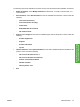
3. Click Printers and Faxes, then click Add a Printer.
4. Click Next on the Welcome dialog box.
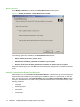
5. On the Local or Network Printer dialog box, click Local printer attached to this computer, and
then click Next.
6. On the Select a Printer Port dialog box, click Create a new port. From the Type of port drop-
down menu, select HP Standard TCP/IP Port. Click Next.
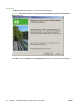
7. The Welcome to the Add Standard TCP/IP Port Wizard dialog box appears. Click Next.
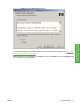
8. The Add Port dialog box appears. Type the printer's IP address in the Printer Name or IP
Address text box. The Port Name fills automatically. Click Next to continue.
To find the printer IP address, run a configuration page from the printer control panel. Make sure
the control panel heading reads Ready.
a. Press Menu,
b. Press the down arrow to highlight INFORMATION, and then press Select.
c. Press the down arrow to highlight PRINT CONFIGURATION, and then press Select to print
the configuration pages
Find the IP address on the printed sheet beneath the Product Settings heading.
9. On the Completing the Add Standard TCP/IP Printer Port Wizard screen, click Finish to
continue with the installation.
10. On the Install Printer Software screen, click Have Disk. Click Next.
11. On the Install from Disk dialog box, click Browse and navigate to the following path:.<CD ROM
drive>:\Drivers\Win2000_XP. Click Open
. Click OK to continue.
12. On the Install Printer Software dialog box, click Printers to select the driver to install, and then
click Next.
NOTE: Microsoft Windows Server 2003 uses the same print driver as Microsoft Windows 2000
and Windows XP.
13. On the Name Your Printer screen, type a name for the printer or accept the default name. Click
Yes to make this printer the default printer. Click Next to continue.
14. On the Printer Sharing screen, determine sharing for this printer, and then click on the Print Test
Page dialog box.
15. Click Yes to print a test page or No to decline, and then click Next.
ENWW Install Overview 69
Install Windows printing-
system components