
HP DesignJet T790 and T1300 Printer Series - Using your printer




Lines are too thick, too thin or missing
1. Check that the paper type you have loaded corresponds to the paper type selected in the front panel and in
your software. See View information about the paper on page 40.
2. Check that you are using appropriate print-quality settings for your purposes (see Printing on page 46).
Select the custom print-quality options in the driver dialog, and try turning on the Maximum detail option (if
available). You may wish to reprint your job at this point in case the problem has been solved.
3. If the resolution of your image is greater than the printing resolution, you may notice a loss of line quality. If
you are using the PCL or the HP-GL/2 and HP RTL driver for Windows, you can nd the Max. Application
Resolution option in the driver dialog's Advanced tab, under Document Options > Printer Features. If you
change this option, you may wish to reprint your job at this point in case the problem has been solved.
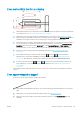
4. If lines are too thin or missing, print the Image Diagnostics Print. See The Image Diagnostics Print
on page 152.
5.
If the problem remains, go to the front panel and press and then to see the printhead
alignment status. If the status is PENDING, you should align the printheads. See Align the printheads
on page 159. After alignment, you may wish to reprint your job in case the problem has been solved.
6.
Go to the front panel and press and then to see the paper advance calibration status. If the
status is DEFAULT, you should perform paper advance calibration: see Recalibrate the paper advance
on page 138.
If the problem persists despite all the above actions, contact your customer service representative for further
support.
Lines appear stepped or jagged
If lines in your image appear stepped or jagged when printed:
1. The problem may be inherent in the image. Try to improve the image with the application you are using to
edit it.
2. Check that you are using appropriate print-quality settings. See Printing on page 46.
3. Select the custom print-quality options in the driver dialog, and turn on the Maximum detail option (if
available).
ENWW Lines are too thick, too thin or missing 143