
HP DesignJet T790 and T1300 Printer Series - Using your printer
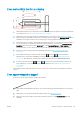




Lines are blurred
Humidity can cause ink to soak into the paper, making the lines blurred and fuzzy. Try the following:
1. Check that your environmental conditions (temperature, humidity) are suitable for high-quality printing.
See Environmental specications on page 177.
2. Check that the paper type selected in the front panel is the same as the paper type you are using. See View
information about the paper on page 40.
3. Try changing to a heavier paper type, such as HP Heavyweight Coated Paper or HP Super Heavyweight Plus
Matte Paper.
4. Select a paper type that is slightly thinner than the paper you have loaded; this will persuade the printer to
use less ink. Here are some example paper types in ascending order of thickness: Plain Paper, Coated Paper,
Heavyweight Coated Paper, Super Heavyweight Plus Matte Paper.
5. If you are using glossy paper, try changing to a dierent type of glossy paper.
6. Align the printheads. See Align the printheads on page 159.
Line lengths are inaccurate
If you have measured your printed lines and nd that the lengths are not suiciently accurate for your purposes,
you can try to improve line length accuracy in the following ways.
1. Print on HP Matte Film, for which your printer's line length accuracy is specied. See Functional
specications on page 175.
Polyester lm is about ten times more dimensionally stable than paper. However, using lm that is thinner
or thicker than HP Matte Film will reduce line length accuracy.
2. Set the Print Quality slider to Quality.
3. Maintain the room at a steady temperature between 10 and 30°C (50 and 86°F).
4. Load the roll of lm and let it rest for ve minutes before printing.
5. If you are still not satised, try recalibrating the paper advance. See Recalibrate the paper advance
on page 138.
ENWW Lines are blurred 145