
HP DesignJet T790 and T1300 Printer Series - Using your printer
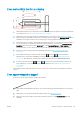




4. Try changing to a thicker paper type, such as HP Heavyweight Coated Paper and HP Super Heavyweight
Plus Matte Paper.
5. Select a paper type that is slightly thinner than the paper you have loaded; this will persuade the printer to
use less ink. Here are some example paper types in ascending order of thickness: Plain Paper, Coated Paper,
Heavyweight Coated Paper, Super Heavyweight Plus Matte Paper.
6. Try to increase the margins by relocating the image to the center of the page using your software
application.
Ink marks on the back of the paper
This can happen after a lot of borderless printing, especially with non-standard paper sizes. Ink residues on the
platen are likely to mark the back of the paper.
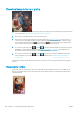
Clean the platen with a soft cloth. Clean each rib separately without touching the foam between the ribs.
Black ink comes o when you touch the print
This problem may be caused by printing with matte black ink on glossy paper. The printer will not use matte
black ink if it knows that the paper will not retain it. To be sure of avoiding matte black ink, you can select Photo
Glossy Paper as the paper type (in the Photo Paper category).
Edges of objects are stepped or not sharp
If edges of objects or lines appear to be poorly dened or lighter in density, and you have already set the print-
quality slider to Quality in the driver dialog, select the custom print-quality options, and try setting the quality
level to Normal. See Printing on page 46.
Edges of objects are darker than expected
If edges of objects seem darker than expected, and you have already set the print-quality slider to Quality in the
driver dialog, select the custom print-quality options, and try setting the quality level to Normal. See Printing
on page 46.
148 Chapter 17 Troubleshooting print-quality issues ENWW