
HP DesignJet T790 and T1300 Printer Series - Using your printer
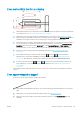


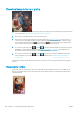
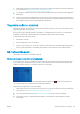


The image is clipped
Clipping normally indicates a discrepancy between the actual printable area on the loaded paper and the
printable area as understood by your software. You can often identify this kind of problem before printing by
previewing your print (see Preview a print on page 54).
●
Check the actual printable area for the paper size you have loaded.
printable area = paper size – margins
●
Check what your software understands to be the printable area (which it may call "printing area" or
"imageable area"). For example, some software applications assume standard printable areas that are
larger than those used in this printer.
●
If you have dened a custom page size with very narrow margins, the printer may impose its own minimal
margins, clipping your image slightly. You may want to consider using a larger paper size, or borderless
printing (see Select margins options on page 52).
●
If your image contains its own margins, you may be able to print it successfully by using the Clip Contents
by Margins option (see Select margins options on page 52).
●
If you are trying to print a very long image on a roll, check that your software is capable of printing an
image of that size.
●
You may have asked to rotate the page from portrait to landscape on a paper size that is not wide enough.
●
If necessary, reduce the size of the image or document in your software application, so it ts between the
margins.
There is another possible explanation for a clipped image. Some applications, such as Adobe Photoshop, Adobe
Illustrator and CorelDRAW, use an internal 16-bit coordinate system which means that they cannot handle an
image of more than 32,768 pixels.
NOTE: An image 32,768 pixels long would print at a length of 1.39 m (54.61 in) if you select Best or Quality in
the driver, 2.78 m (109.23 in) if you select Fast, Normal or Speed in the driver.
If you try to print an image larger than this from these applications, the bottom of the image may be clipped. To
print the whole image, try these suggestions:
●
Try using the PostScript printer driver to print your job, if you have not already tried it.
●
The Windows HP-GL/2 and HP RTL driver dialog includes an option called Max. application resolution, which
enables you to print successfully in this situation. You will not normally need to change the default setting,
which is Auto. However, you can nd the option in the Advanced tab, under Document Options > Printer
Features.
●
Save the le in another format, such as TIFF or EPS, and open it with another application.
●
Use a RIP to print the le.
Some objects are missing from the printed image
Large quantities of data may be necessary to print a high-quality large-format print job, and in some specic
workows there may be issues that can lead to some objects missing from the output. Here are some
suggestions to help you to avoid this problem.
●
Try using the PostScript printer driver to print your job, if you have not already tried it.
●
Select a smaller page size and scale to the desired nal page size in the driver or in the front panel.
●
Save the le in another format, such as TIFF or EPS, and open it with another application.
ENWW The image is clipped 151