
HP DesignJet T790 and T1300 Printer Series - Using your printer


Unload a single sheet
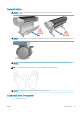
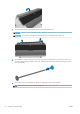
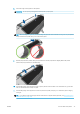
To unload a single sheet after printing, you can simply pull the sheet free from the front of the printer.
To unload a sheet without printing, go to the front panel and press then the roll 1 icon, then Unload >
Unload sheet.
Alternatively, press , then , then Paper > Paper unload > Unload sheet.
The sheet unloads out of the front of the printer; either catch it manually or allow it to fall into the basket.
View information about the paper
To view the loaded paper information, press then the roll icon.
The following information is displayed on the front panel:
●
Paper type you have selected
●
Roll or sheet status
●
Width of the paper in millimeters (estimated)
●
Length of the paper in millimeters (estimated)
If no paper is loaded, the message Out of paper is displayed.
The same information is displayed in the HP Utility for Windows (Overview tab > Supplies Status tab), the HP
Utility for Mac OS (Information group > Printer Status > Supplies Details) and the Embedded Web Server (upper-
right corner).
Paper presets
Each supported paper type has its own characteristics. For optimum print quality, the printer changes the way it
prints on each dierent paper type. For example, some may need more ink and some may require a longer
drying time. So the printer must be given a description of the requirements of each paper type. This description is
called the paper preset. The paper preset contains the ICC prole, which describes the color characteristics of the
paper; it also contains information on other characteristics and requirements of the paper that are not directly
related to color. Existing paper presets for your printer are already installed in the printer's software.
However, as it is inconvenient to scroll through a list of all paper types available, your printer only contains paper
presets for the most commonly used paper types. If you have a paper type for which your printer has no preset,
you cannot select that paper type in the front-panel display.
There are two ways to assign a preset for a new paper type.
●
Use an HP factory paper preset by selecting the closest category and type in the front panel or the HP
Utility, see The paper type is not in the driver on page 130.
NOTE: Colors may not be accurate. This method is not recommended for high-quality prints.
●
Download the correct paper preset from: http://www.hp.com/go/T790/paperpresets or
http://www.hp.com/go/T1300/paperpresets.
NOTE: HP provides presets for HP paper types only. If you do not nd the paper preset you want on the
Web, you may nd that it has been added to the latest rmware for your printer. You can check the
rmware release notes for information, see Update the rmware on page 117.
40 Chapter 5 Paper handling ENWW