
HP DesignJet T790 and T1300 Printer Series - Using your printer

To print crop lines with nested jobs (see Nest jobs to save roll paper (T1300 series) on page 57), you must
select a dierent option:
●
In the Embedded Web Server: select Setup > Printer settings > Job management > Use crop lines when
nest is enabled > On.
●
Using the front panel: press , then , then Setup > Job management > Nest options > Enable crop
lines
> On.
Use paper economically
Here are some recommendations for making economical use of paper:
●
If you are printing relatively small images or document pages, you can use nesting to print them side by
side instead of one after another. See Nest jobs to save roll paper (T1300 series) on page 57.
●
You may be able to save some roll paper by using the following options:
—
In the Windows driver dialog: select the Features tab and then Remove top/bottom blank areas and/or
Rotate by 90 degrees or Autorotate.
—
In the Mac OS Print dialog (non-PostScript printers): select the Finishing panel, then Remove Top/
Bottom Blank Areas
.
—
In the Mac OS PostScript Print dialog (PostScript printers): select the Finishing panel, then Remove
Top/Bottom Blank Areas and/or Rotate by 90 degrees.
—
On the Embedded Web Server's Submit Job page (T1300 series): select Advanced settings > Roll
options > Remove top/bottom blank areas and/or Rotate.
●
If you check the print preview on your computer before printing, you can sometimes avoid wasting paper
on prints containing obvious mistakes. See Preview a print on page 54.
Nest jobs to save roll paper (T1300 series)
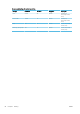
Nesting means automatically printing images or document pages side by side on the paper, rather than one after
the other. This is done to avoid wasting paper.
1. Direction of paper ow
2. Nesting o
3. Nesting on
4. Paper saved by nesting
When does the printer try to nest pages?
When both of the following are true:
ENWW Advanced print settings 57