
Other Content


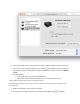


You have a network printer connection
Step 2: Reset the printer
Resetting power to the printer forces the printer to reset stored values in the firmware. A power reset
can help when the printer is not accepting communication from the Mac.
1. Make sure the printer is idle, not making any sounds, before continuing.
2. With the printer turned on, disconnect the power cord from the rear of the printer.
3. Unplug the power cord from the wall outlet.
4. Wait at least 60 seconds.
5. Plug the power cord back into the wall outlet.
6. Reconnect the power cord to the rear of the printer.
7. If the printer does not turn on by itself, press the Power button to turn it on.
8. Try printing again and note what happens.
If the printer prints, you can stop troubleshooting.
If the print job becomes stuck again, continue to the next step.
Step 3: Remove multiple printers from the printer list
Check for multiple devices in the Printers list, and then remove any extra entries other than one in idle
status.
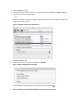
1. Search the Mac for Print, and then click Print & Fax, Print & Scan, or Printers & Scanners in the
list of results.
2. Find the printer names that match your printer from the list of devices.
Figure : Printers and Scanner window with multiple names of a printer in the list