
Other Content


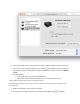


3. If you see multiple printer queues for the same printer, remove all extra printers by selecting
them one at a time, and then clicking the minus button at the bottom of the list. Leave one
'idle' printer in the list that matches your printer if available and use this printer as the Default
printer.
4. Try printing again.
If the printer prints, you can stop troubleshooting.
If the printer remains offline or displays an error, continue to the next step.
Step 4: Delete the existing print queue and add the printer
Remove the printer queue from the list of printers, and then add it again. Doing so creates a new
printing session.
1. Make sure your Mac is connected to the Internet.
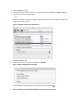
2. In the Printers list, click your HP printer, and then click the Minus button to delete it.