
Other Content


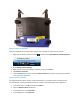


3. Wait for the router’s network activity light to become active.
4. Press the wireless button or wireless control panel icon on the printer to turn the wireless
connection off, and then on.
5. Wait for the printer to reconnect to your router.
5. Turn on the computer.
6. Reconnect the power cord to the rear of the printer.
7. Try to print.
If you can print, you are done.
If the printer cannot print and remains offline, continue.
Step 3: Set the default printer
The default print driver might have changed from the driver you installed to another driver, such as a
Web Services for Devices (WSD) driver with a very similar name. Change the default print driver to your
originally installed driver and confirm the printer is not set for offline use.
1. Search Windows for devices, and then click Devices and Printers from the list of results.
2. Right-click the name of the HP printer that is active (not grayed out), and then select Set as
Default printer.
3. Try to print.
If you can print, you are done.
If the printer cannot print and remains offline or goes offline intermittently, continue to
the next step.
Other things to try
If the printer remains offline after previous troubleshooting steps did not resolve the issue, try these
possible solutions.
Connect to a proper wireless network
When connecting a wireless printer to a network, make sure it is connected to the same network name
as the computer.
Do not connect the printer to guest or host networks, such as networks found in apartments, coffee
shops, schools, or hotels. These have additional security features or login requirements that prevent
connections to the printer.
Connect to the printer’s wireless direct connection