
Other Content


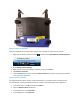


Find the password in Windows
View your password from any Windows computer that is already connected to your network.
1. Right-click the wireless network tray icon , and then select Open Network and Sharing Center.
2. Select Change Adapter Settings.
3. Right-click the name of your wireless network, and then click Status.
4. Click Wireless Properties.
5. Click the Security tab, and then select the Show characters check box to see the wireless network
security key (your password).
Find the password in MacOS
You might be able to find the wireless network password from a computer that is connected to the
wireless network. To view the network password on a Mac, open the Keychain Access application.
1. In the Finder menu, click Go, and then click Utilities.
2. Open the Keychain Access application.
3. In the Keychains list, click Local Items.
4. In the Category list, click Passwords.