
User Guide






use or o the hook. For example, you cannot use the printer for faxing if an extension phone is o the
hook, or if you are using a computer dial-up modem to send email or access the Internet.
The printer is having problems sending and receiving faxes
● Make sure the printer is turned on. Look at the display on the printer. If the display is blank and (the
Power button) light is not lit, the printer is turned o. Make sure the power cord is rmly connected to
the printer and plugged into a power outlet. Press (the Power button) to turn on the printer.
After turning on the printer, HP recommends you wait ve minutes before sending or receiving a fax. The
printer cannot send or receive faxes while it is initializing after being turned on.
● If HP Digital Fax has been enabled, you might not be able to send or receive faxes if the fax memory is
full (limited by printer memory).
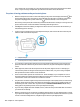
● Connect one end of the phone cord to your telephone wall jack, then connect the other end to the port
labeled 1-LINE on the back of the printer.
1 Telephone wall jack.
2 Connect the phone cord to the port labelled 1-LINE on the back of the printer.
● Try connecting a working phone and phone cord to the telephone wall jack that you are using for the
printer and check for a dial tone. If you do not hear a dial tone, call your local telephone company for
service.
● Other equipment, which uses the same phone line as the printer, might be in use. For example, you
cannot use the printer for faxing if an extension phone is o the hook, or if you are using a computer
dial-up modem to send an email or access the Internet.
● Check to see if another process has caused an error. Check the display or your computer for an error
message providing information about the problem and how to solve it. If there is an error, the printer
cannot send or receive a fax until the error condition is resolved.
● The phone line connection might be noisy. Phone lines with poor sound quality (noise) can cause faxing
problems. Check the sound quality of the phone line by plugging a phone into the telephone wall jack
and listening for static or other noise. If you hear noise, turn Error Correction Mode (ECM) o and try
faxing again. If the problem persists, contact your telephone company.
● If you are using a digital subscriber line (DSL) service, make sure that you have a DSL lter connected or
you cannot fax successfully.
● Make sure the printer is not connected to a telephone wall jack that is set up for digital phones. To check
if your phone line is digital, connect a regular analog phone to the line and listen for a dial tone. If you do
not hear a normal sounding dial tone, it might be a phone line set up for digital phones.
128 Chapter 10 Solve a problem ENWW