
User's Guide
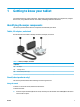
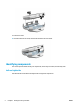


Table Of Contents
- Getting to know your tablet
- Network connections
- Managing power
- Security
- Maintenance
- Electrostatic discharge
- Accessibility
- Index
- Untitled
- Untitled

Table 1-3 Top and bottom components and their descriptions (continued)
Component Description
(2) Volume down button Decreases speaker volume on the tablet.
(3)
microSD
TM
memory card reader/micro SIM
card slot combo, on some models
Reads optional memory cards that enable you to store,
manage, share, or access information, and supports a wireless
subscriber identity module (micro SIM) card.
For installation steps, see Installing a micro SIM card
on page 19 and Installing a microSD card on page 16.
NOTE: Only some tablet models have read/write support for
microSD memory cards up to 256 GB
(4) Power connector Connects an AC adapter, supplying power to the tablet and, if
needed, charging the tablet battery.
– and –
Connects an otional docking station.
(5) Power button/ ingerprint reader ● When the tablet is o, press and hold the button for 3-5
seconds to turn on the tablet.
● When the tablet is on, press to turn o the tablet.
● When the tablet is locked, touch the power button to use
your ingerprint to unlock the tablet.
You must have your ingerprint registered to unlock your
tablet. For more information, see Using a ingerprint
logon on page 27.
Display
Use the illustration and table to identify the display components.
4 Chapter 1 Getting to know your tablet ENWW