
Advanced Traffic Management Guide K/KA/KB.15.15
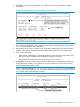
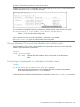
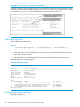
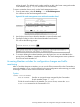

2. Press A (for Add) to add a Candidate. You will then see this screen listing the available
Candidates:
Example 176 A Candidate list on the Stack Management screen
3. Either accept the displayed switch number or enter another available number. (The range is
0 - 15, with 0 reserved for the Commander.)
4. Use the down arrow key to move the cursor to the MAC Address field, then enter the MAC
address of the desired Candidate from the Candidate list in the lower part of the screen.
5. Do one of the following:
• If the desired Candidate has a Manager password, press the down arrow key to move
the cursor to the Candidate Password field, then enter the password.
• If the desired Candidate does not have a password, go to step 6.
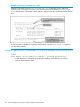
6. Press Enter to return to the Actions line, then press S (for Save) to complete the Add process
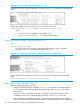
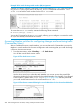
for the selected Candidate. You will then see a screen similar to the one in the next figure,
with the newly added Member listed.
NOTE: If the message Unable to add stack member: Invalid Password appears
in the console menu's Help line, then you either omitted the Candidate's Manager password
or incorrectly entered the Manager password.
Manually adding a Candidate to a stack (Menu) 271