
Advanced Traffic Management Guide K/KA/KB.15.15
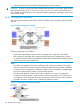

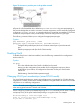

Figure 75 VLANs in a QinQ configuration
Customer VLANs (referred to as C-VLANs by the IEEE 802.1ad specification) are not used to make
any forwarding decisions inside the provider network where customer frames get assigned to
service VLANs (S-VLANs). Inside the provider cloud, frames are forwarded based on the S-VLAN
tag only, while the C-VLAN tag remains shielded during data transmission. The S-VLAN tag is
removed when the frame exits the provider network, restoring the original customer frame.
Features and benefits
• Increases the VLAN space in a provider network or enterprise backbone.
• Reduces the number of VLANs that a provider needs to support within the provider network
for the same number of customers.
• Enables customers to plan their own VLAN IDs, without running into conflicts with service
provider VLAN IDs.
• Provides a simple Layer 2VPN solution for small-sized MANs (Metropolitan Area Networks)
or intranets.
• Provides for customer traffic isolation at Layer 2 within a Service Provider network.
Configuring QinQ
QinQ must be configured on all the devices and ports participating in the provider bridge. Typically,
customer facing ports are configured as untagged members of S-VLANs and provider facing ports
are configured as tagged members of S-VLANs. Per the IEEE 802.1ad specification, there is no
condition binding port types (customer or provider) to untagged or tagged S-VLAN memberships.
Therefore, when configuring QinQ tunnelling on the switch, you would first configure per-port
S-VLAN membership (tagged or untagged), and then configure the port type as
customer-network or provider-network, depending on the device to which the switch port
is connected.
NOTE: A customer-network port can receive S-VLAN tagged frames if the customer and provider
agree on the S-VID association for that customer and the customer device is capable of sending
S-VLAN tagged frames.
To configure QinQ take the following steps on all participating provider switches:
1. Enable QinQ on the device, selecting the appropriate QinQ mode (S-VLAN or mixed VLAN
mode).
2. Save the configuration and reboot the switch.
3. Configure S-VLANs and assign per port VLAN membership.
4. Configure port-types for all of the switch ports that carry QinQ traffic across the network.
Configuring QinQ 323