
Basic Operation Guide 2014/02
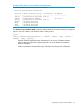


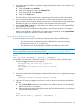


After the switch reboots, it displays the CLI or Main Menu, depending on the Logon Default
setting last configured in the menu’s Switch Setup screen.
4. Verify the software version by displaying the system information for the switch (for example,
through the show system-information command), and viewing the Software revision field.
Software signing and verification
As an enhanced security feature, you can verify whether a software image being downloaded to
or stored in your switch has, in fact, been provided by HP Networking without any modification
or corruption.
Validation is based on the image signature that is generated and attached to the switch software
by HP Code Signing Service (HPCSS). HP Networking implemented digital signature validation
starting with specific switch software versions. For a list of these software versions, go to:
www.hp.com/networking/swvalidation.
NOTE: Once a switch software image has been digitally signed on a specific version, all later
versions will also be signed.
Switches supporting digital signature verification will generate an error message if you attempt to
download an image that is not digitally signed. For example, using the CLI commands described
above to revert back to an image that isn’t signed from an image that is signed and supports
verification would result in the following message:
This software image does
not contain a digital signature and
cannot be validated as originating
from HP. You may bypass this
validation by using the
'allow no-signature’ option. Please
see www.hp.com/networking/swvalidation
for information about which versions
of software contain digital signatures.
When you use the copy command to download a properly signed image, the CLI logs the following
syslog message:
Update: Firmware image contains valid signature.
Errors related to signature validation will generate one of the following log messages:
Update: Aborted. Downloaded file invalid.
Update: Aborted. Firmware image does not contain a signature.
Update: Aborted. Firmware image signature is not valid.
Using the CLI to validate or bypass a signature verification
Manually validating software. If necessary, you can validate software that does not support signature
verification by executing the following command:
verify signature flash { primary | secondary }
If the signature is valid, the following message will be displayed:
Signature is valid.
Bypassing verification. If necessary, you can use the allow-no-signature option to bypass signature
verification. To do this, execute the copy command as follows:
copy { tftp | sftp | usb | xmodem }
flash [<hostname/IP>] [<filename>] { primary | secondary }
allow-no-signatures
128 Software Management