
Access Security Guide K/KA/KB.15.15

Deleting password protection
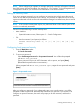
This procedure deletes all usernames (if configured) and passwords (manager and operator).
Option one
1. If you have physical access to the switch, press and hold the [Clear] button (on the front of the
switch) for a minimum of one second to clear all password protection
2. Enter new passwords.
Option two
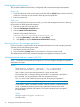
If you do not have physical access to the switch, you will need manager-level access. Following
this procedure to delete password protection:
1. Enter the console at the manager level.
2. Select the Set Manager Password option.
3. Select to Delete Password Protection.
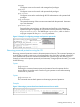
Selection will prompt the following:
Continue Deletion of password protection? No/ Yes
a. Press the [Space bar] to select Yes, then press [Enter].
b. Press [Enter] to clear the Delete Password Protection message.
Recovering from a lost manager password
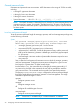
If you cannot start a console session at the manager level because of a lost manager password,
clear the password by following these steps:
1. Get physical access to the switch.
2. Press and hold the [Clear] button on the switch for a minimum of one second.
This deletes all passwords and usernames (manager and operator) used by the console.
Setting passwords and user names in the CLI
NOTE: The password command has changed. You can now configure manager and operator
passwords in one step.
Syntax:
[no]password <manager | operator | all | portaccess> [
user-name ASCII-STR ] [ <plaintext | sha1> ASCII-STR]
Sets or clears a local username/password for a given access level.
The command sets or changes existing password(s). If no password is provided in
the command, you are prompted to enter the new password twice.
The [no] form of the command removes specific local password protection.
NOTE: port-access is available only if include-credentials is enabled.
For the 3800, 5400zl, and 8200zl switches, when the switch is in enhanced secure
mode, commands that take a password as a parameter have the echo of the
password typing replaced with asterisks. The input for the password is prompted
for interactively.
Syntax
manager|operator|port-access|all
Level of access
22 Configuring Username and Password Security