
Access Security Guide K/KA/KB.15.15


8 Secure Shell (SSH)
Configuring
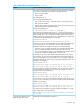
Steps for configuring and using SSH for switch and client authentication
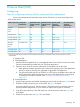
For two-way authentication between the switch and an SSH client, you must use the login level.
Table 23 SSH options
Secondary switch
password
authentication
Primary switch
password
authentication
Authenticate client
public key to the
switch?
Authenticate switch
public key to SSH
clients?
Primary SSH
authentication
Switch access level
local or noneNo
1
Yes
1
Yesssh login rsaOperator
(Login)
Level
noneYesNoYesssh login Local
local or noneYesNoYesssh login TACACS
local or noneYesNoYesssh login RADIUS
noneYesNoYesssh enable localManager
(Enable)
Level
local or noneYesNoYesssh enable tacacs
local or noneYesNoYesssh enable radius
1
For ssh login public key, the switch uses client public-key authentication instead of the switch password options for primary
authentication.
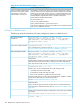
To configure SSH:
A. Client preparation
1. Install an SSH client application on a management station to be used for access to the switch.
(See the documentation provided with your SSH client application.)
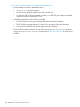
2. Optional—If you want the switch to authenticate a client public key on the client:
a. Either generate a public/private key pair on the client computer (if your client application
allows) or import a client key pair generated using another SSH application.
b. Copy the client public key into an ASCII file on a TFTP server accessible to the switch and
download the client public-key file to the switch. The client public-key file can hold up to
10 client keys. This topic is covered under “Creating a Client Public-Key text file”
(page 247).
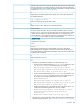
B. Switch preparation
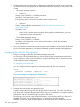
1. Assign a login (operator) and enable (manager) password on the switch, see Step 1 for details.
2. Generate a public/private key pair on the switch, see Step 2 for details.
You need to do this only once. The key remains in the switch even if you reset the switch to
its factory-default configuration. You can remove or replace this key pair, if necessary.
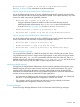
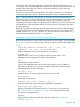
3. Copy the switch public key to the SSH clients you want to access the switch see Step 3 for
more details.
4. Enable SSH on the switch, see Step 4 for more details.
Configuring 227