
Advanced Traffic Management Guide K/KA/KB.15.15

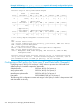
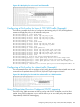
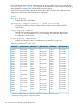
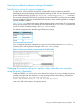
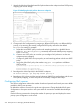
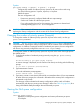

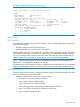

1. Identify the global and classifier-based QoS policies that use the codepoint whose DSCP-priority
mapping you want to change.
Figure 52 Identifying the QoS policies that use a codepoint
2. Change each QoS configuration by assigning a different DSCP policy or a different 802.1p
priority, or by removing the currently configured DSCP policy and restore the default
No-override setting; for example:
a. Delete the current DSCP policy used to mark matching packets for a global IP-device
policy (no qos device-priority command) and reset the default priority mapping
to No-override.
b. Create a new DSCP policy to use when you reconfigure QoS policies to use the new
codepoint-priority mapping.
c. Configure a global QoS source-port policy to mark matching packets with the new DSCP
policy.
d. Assign the global QoS policy that matches udp-port 1260 packets to a different
802.1p priority.
HP Switch(config)#: no qos device-priority 10.26.50.104HP Switch(config)#: qos dscp-map 000100 priority
6
HP Switch(config)#: int 3 qos dscp 000100
HP Switch(config)#: qos udp-port 1260 priority 2
3. Reconfigure the desired priority for the 000001 codepoint.
HP Switch(config)#: qos dscp-map 000001 priority 4
4. Reconfigure QoS policies with the original codepoint (000001) to mark packets with the new
DSCP-priority mapping, or leave QoS policies as currently configured from Step 2.
Configuring QoS queues
QoS queue configuration reduces the number of outbound queues that all switch ports use to buffer
packets for 802.1p user priorities.
By default the switches covered in this guide use eight queues. Change the default QoS queue
configuration to four-queue mode or two-queue mode to increase the available bandwidth per
queue.
Use the following commands to change the number of queues per port and display the current
priority queue configuration on the switch.
236 Quality of Service: Managing bandwidth effectively