
Advanced Traffic Management Guide K/KA/KB.15.15
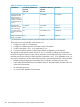

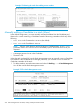

Table 27 Stacking configuration guidelines
PasswordsCandidate (IP Addressing
Optional)
Commander (IP Addressing
Required)
Join Method 1
Auto JoinAuto Grab
No (default)
1
Yes (default)YesAutomatically add
Candidate to Stack
Causes the first 15
eligible, discovered
switches in the subnet
to automatically join
a stack.
Optional
1
Yes (default)No (default)Manually add
Candidate to Stack
Optional
1
NoYes
Prevent automatic
joining of switches
ConfiguredYes (default) or NoYes
you don't want in the
stack
OptionalDisabledN/APrevent a switch from
being a Candidate
1
The Commander's Manager and Operator passwords propagate to the candidate when it joins the stack.
The easiest way to automatically create a stack is to:
1. Configure a switch as a Commander.
2. Configure IP addressing and a stack name on the Commander.
3. Set the Commander's Auto Grab parameter to Yes.
4. Connect Candidate switches (in their factory default configuration) to the network.
This approach automatically creates a stack of up to 16 switches (including the Commander).
However this replaces manual control with an automatic process that may bring switches into the
stack that you did not intend to include. With the Commander's Auto Grab parameter set to Yes,
any switch conforming to all four of the following factors automatically becomes a stack Member:
• Default stacking configuration (Stack State set to Candidate, and Auto Join set to Yes)
• Same subnet (broadcast domain) and default VLAN as the Commander (If VLANs are used
in the stack environment).
• No Manager password
• 14 or fewer stack members at the moment
262 Stack management for the 3500, 3500yl, 6200yl and 6600 switches