
Advanced Traffic Management Guide K/KA/KB.15.15


Creating a stack (Overview)
1. Determine the naming conventions for the stack.
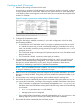
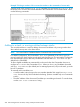
A stack name is necessary. To help distinguish one switch from another in the stack, configure
a unique system name for each switch. Otherwise, the system name for a switch appearing
in the Stacking Status screen appears as the stack name plus an automatically assigned switch
number. For example:
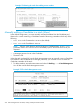
Figure 57 Using the system name to help identify individual switches
2. Configure the Commander switch.
Doing this first helps to establish consistency in your stack configuration, which can help
prevent startup problems.
• A stack requires one Commander switch. If you plan to implement more than one stack
in a subnet, the easiest way to avoid unintentionally adding a Candidate to the wrong
stack is to manually control the joining process by leaving the Commander's Auto Grab
parameter set to No.
• The Commander assigns its Manager and Operator passwords to any Candidate switch
that joins the stack.
• The Commander's SNMP community names apply to members.
3. For automatically or manually pulling Candidate switches into a stack, you can leave such
switches in their default stacking configuration. If you need to access Candidate switches
through your network before they join the stack, assign IP addresses to these devices.
Otherwise, IP addressing is optional for Candidates and Members.
NOTE: Once a Candidate becomes a member, you can access it through the Commander
to assign IP addressing or make other configuration changes.
4. Make a record of any Manager passwords assigned to the switches intended for your stack,
that are not currently members. Using these passwords enables the protected switches to join
the stack.
5. If using VLANs in the stacking environment, use the default VLAN for stacking links.
6. Ensure that all switches intended for the stack are connected to the same subnet. As soon as
you connect the Commander, it will begin discovering the available Candidates in the subnet.
• If the Commander is configured to automatically add Members (Auto Grab=Yes), the
first fifteen discovered Candidates meeting both of the following criteria will automatically
join the stack:
• Auto Join parameter set to Yes (the default)
• Manager password not configured
• If you configured the Commander to manually add Members (Auto Grab set to No—the
default), begin the process of selecting and adding the desired Candidates.
7. Ensure that all switches intended for the stack have joined.
Creating a stack (Overview) 263