
Advanced Traffic Management Guide K/KA/KB.15.15

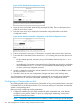
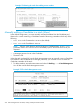

Example 169 Using the show stack all command to list discovered switches in the IP subnet
The switch on which the show stack all command is executed is a Candidate; it is included
in the Others category.
HP Switch(config)#: show stack all
Stacking - Stacking Status (All)
Stack Name MAC Address System Name Status
--------------- ------------- ------------------------- --------------------
Big_Waters 1cc1de-cfbc80 Big_Waters-0 Commander Up
000883-08f980 Big_Waters-1 Member Up
Others: 0060b0-889e00 DEFAULT_CONFIG Candidate
Viewing the status of the Commander and current members of the
Commander’s stack
Syntax:
show stack view
Lists all switches in the stack of the selected switch.
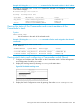
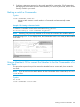
Example 170 Using the show stack view command to list the stack assigned to the selected
commander
HP Switch(config)#: show stack view
Stack Members
SN MAC Address System Name Device Type Status
-- ------------- ------------- -------------------- ------------
0 1cc1de-cfbc80 Big_Waters-0 HP Switch 3500yl Commander Up
1 000883-08f980 Big Waters-1 HP Switch 3500yl Member Up
Viewing stack status and configuring a Commander switch (Menu)
1. Configure an IP address and subnet mask on the Commander switch. See the Management
and Configuration Guide for your switch.
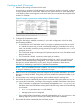
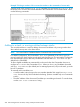
2. Display the Stacking Menu by selecting Stacking in the Main Menu.
Figure 58 The default stacking menu
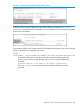
3. Display the Stack Configuration screen by pressing 3 to select Stack Configuration.
Viewing the status of the Commander and current members of the Commander’s stack 265