
Advanced Traffic Management Guide K/KA/KB.15.15

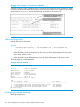

Syntax
Stacking merge-policy no-merge | uptime | winning-stack
<stack-id | current-stack>
Converting a Commander or Member to a Member of another stack
(Commander Menu)
When moving a Commander, the following procedure returns the stack members to Candidate
status (with Auto-Join set to No), and converts the stack Commander to a Member of another stack.
When moving a member, the procedure simply pulls a Member out of one stack and pushes it into
another.
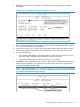
1. From the Main Menu of the switch you want to move, select 9. Stacking.
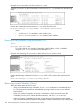
2. To determine the MAC address of the destination Commander, select 2. Stacking Status (All).
3. Press B (for Back) to return to the Stacking Menu.
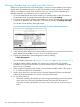
4. To display Stack Configuration menu for the switch you are moving, select 3. Stack
Configuration.
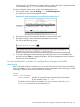
5. Press E (for Edit) to select the Stack State parameter.
6. Use the Space bar to select Member, then press v to move to the Commander MAC Address
field.
7. Enter the MAC address of the destination Commander and press Enter.
8. Press S (for Save).
Removing a Member from a stack
You can remove a Member from a stack using the CLI of either the Commander or the Member.
NOTE: When you remove a Member from a stack, the Member's Auto Join parameter is set
to No.
Removing a stack Member using the Commander’s CLI
This option requires the switch number (SN) and the MAC address of the switch to remove. Because
the Commander propagates its Manager password to all stack members, knowing the Manager
password is necessary only for gaining access to the Commander. Use show stack view to
list the stack Members.
Syntax:
[no] stack member switch-num mac-address mac-addr
Removes the specified Member from the stack.
Converting a Commander or Member to a Member of another stack (Commander Menu) 277