
Advanced Traffic Management Guide K/KA/KB.15.15
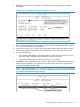

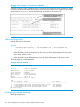
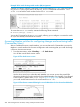

Example 183 A stack showing switch number (SN) assignments
Suppose you want to configure a port trunk on the switch named North Sea in the stack named
Big_Waters. To do so go to the CLI for the Big_Waters Commander and execute show
stack view to find the switch number for the North Sea switch:
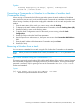
To access the North Sea console, execute the following Telnet command:
HP Switch(config)#: telnet 3
You see the CLI prompt for the North Sea switch, allowing you to configure or monitor the switch
as if you were directly connected to the console.
Accessing Member switches for configuring changes and monitoring traffic
(Commander Menu)
After a Candidate becomes a stack Member, you can use that stack's Commander to access the
Member's console interface for the same configuration and monitoring that you would do through
a Telnet or direct-connect access.
1. From the Main Menu, select 9. Stacking... —> 5. Stack Access
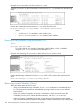
You will then see the Stack Access screen.
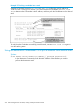
Figure 63 The Stack Access screen
Use the down arrow key to select the stack Member you want to access, then press X (for
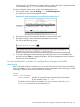
eXecute) to display the console interface for the selected Member. For example, if you selected
switch number 1 (system name: Coral Sea) in Figure 63 (page 280) and then pressed X,
you would see the Main Menu for the switch named Coral Sea.
Figure 64 The eXecute command Viewing the console Main Menu for the selected stack Member
280 Stack management for the 3500, 3500yl, 6200yl and 6600 switches