
Advanced Traffic Management Guide K/KA/KB.15.15

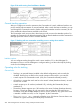


5. Press Enter to return the cursor to the Actions line.
6. Press S (for Save) to save your configuration changes and return to the Stacking menu.
Using the Commander to manage the stack
The Commander normally operates as your stack manager and point of entry into other switches
in the stack. This typically includes:
• Adding new stack members
• Moving members between stacks
• Removing members from a stack
• Accessing stack members for individual configuration changes and traffic monitoring
The Commander also imposes its passwords on all stack members and provides SNMP community
membership to the stack.
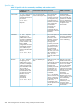
Monitoring stack status (Menu)
Using the stacking options in the menu interface for any switch in a stack, you can view stacking
data for that switch or for all stacks in the subnet. This helps in determining the stacking configuration
for individual switches, identifying stack Members and Candidates, and determining the status of
individual switches in a stack.
Table 29 Stack status environments
CandidateMemberCommanderScreen name
Candidate's stacking configurationStack Status (This Switch)
•• Member's stacking
configuration
Commander's
stacking configuration
• •Data on stack
Members:
Member Status
• Data identifying
Member's Commander:
• Switch Number
• Commander Status• MAC Address
• •System Name Commander IP
Address
• Device Type
• Commander MAC
Address
• Status
Same as for Commander.Same as for Commander.Lists devices by stack
name or Candidate
Stack Status (All)
status (if device is not a
stack Member). Includes:
• Stack Name
• MAC Address
• System Name
• Status
If you are using VLANs in your stack environment, see “Stacking operation with multiple VLANs
configured” (page 289).
Using a stacked switch to view status for all switches with stacking enabled
(Menu)
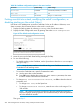
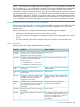
This procedure displays the general status of all switches in the IP subnet that have stacking enabled.
Go to the console Main Menu for any switch configured for stacking and select 9. Stacking ... —>
2. Stacking Status (All).
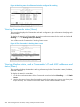
You will then see a Stacking Status screen similar to the following.
Using the Commander to manage the stack 283